
# Backups
At this point Mothership should be configured to know how to back things up (servers / cloud credentials), what to back up (environments), and now it just needs to know when to back everything up.
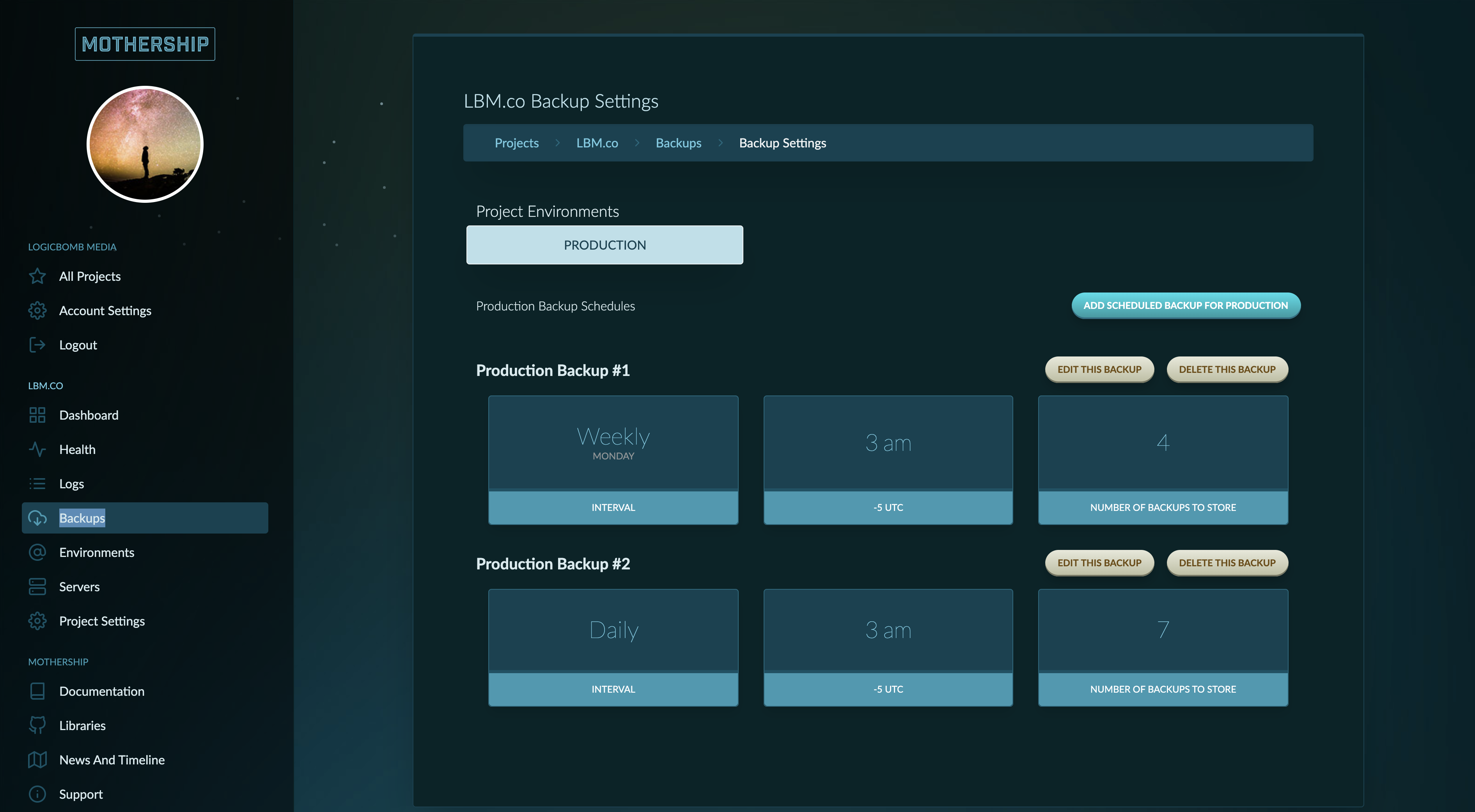
# Adding a backup schedule
This is pretty simple. Select the environment that you want to add a scheduled backup to (if you only have one there is nothing to select). Click Add Schedule backup for "Your environment".
# Intervals
Intervals are pretty awesome because they allow you to "stack" your backups. What we tend to do is schedule a daily backup, a weekly backup, and a monthly backup for each of our projects. That was we have a bunch of snapshots that we can jump back to if there is an issue or we want to troubleshoot some problem.
# Hour
The hour is based on -5 UTC (US Eastern Timezone) so we tend to select around 3am EST when traffic is low. Pick an hour that works best for your projects location. There won't be any downtime but there is additional load on the server as it copies and transfers files to S3.
# Number of backups to store
This is totally up to you but we tend to store 7 daily backups, 4 weekly backups, and 4 monthly backups most of the time. Again, this is really up to you and your use case.
# Viewing your backups
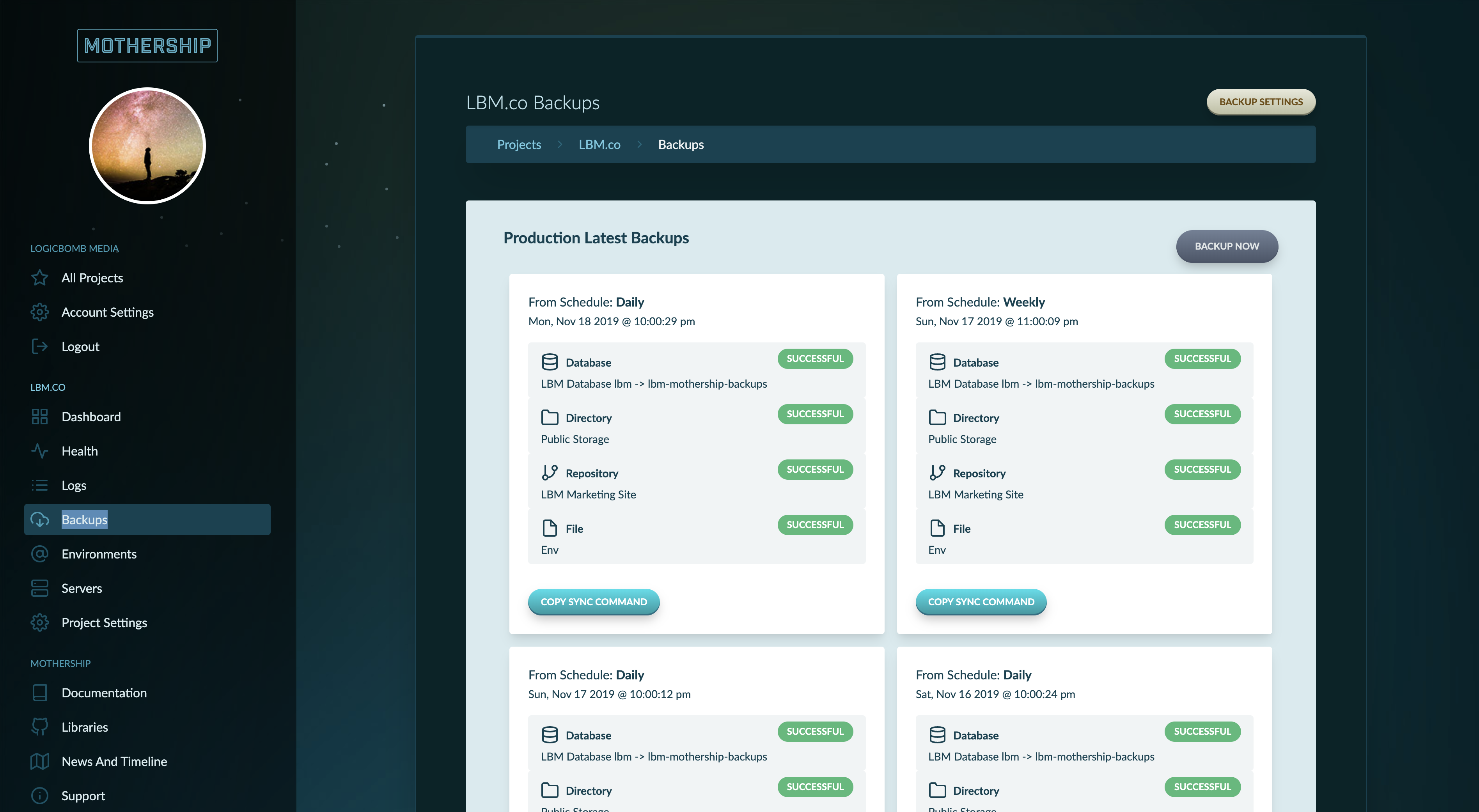
Once you have some backups scheduled and they have had a chance to run you will see them in the various environments once you click "Load backups for this environment". You can also click "Backup Now" for an on-demand backup.
Here you can see what was backed up and also copy the sync command for Mothership CLI if you wish to jump to that backup on your local machine.